TV Cast for Chromecast
- 3.7
- Rating
- 10.00M
- Installs
- Free
- Price

 Analysis by App-foxy
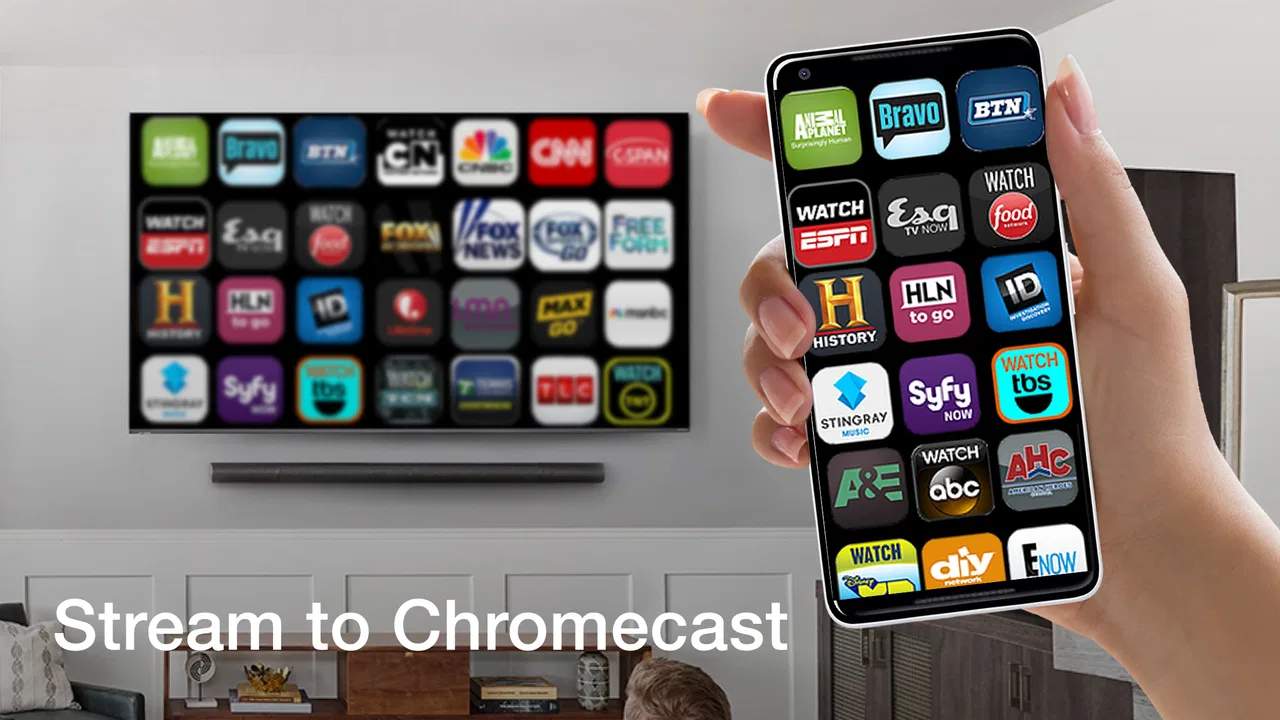
Getting a video from a phone onto a television often sounds easier than it feels. You find something worth watching, open the sharing menu, search for the TV, wait for the connection, and then discover that the app or website does not behave the way you expected. TV Cast for Chromecast is built around that recurring annoyance: it gives you one place to send compatible video, mirror your screen, or share what is happening on your phone with a Chromecast TV.
I see it as a practical tools app rather than an entertainment service in its own right. It does not replace the content you want to watch; it helps move that content from a mobile screen to a larger one. That distinction matters. If your main problem is choosing films or finding new channels, this is not the app for you. If your problem is that your phone has the video while the room has the television, it can make the handoff much less frustrating.
The app comes from EVOLLY.APP and is free to install, with optional in-app purchases listed from around five dollars to around thirty-eight dollars per item. It is rated for Everyone, works on devices running Android six or later, and its current version is 1.4.5. Its broad reach is reflected in more than ten million installs, while its average sits at 3.7 from roughly eighty-one thousand ratings and about three thousand reviews. Those figures suggest a useful but not universally smooth experience, which matches my impression: the idea is straightforward, but casting still depends on the television, network, and source being used.
You May Also Like

 Blood Strike: 2.5 Anniversary
Blood Strike’s Loadouts Turn Every Drop Into a Tactical Gamble
A close look at Blood Strike’s custom loadouts: how fast access to signature weapons reshapes its battle royale rhythm, rewards preparation, and narrows the gap between fights.

 Pandora - Music & Podcasts
Pandora’s Music Is Easy to Start, but Harder to Recover
Pandora’s strength is its low-effort path from a seed to a station. Its weak spot is how much confidence it asks you to place in connection, setup, and quiet recovery.

 8 Ball Pool
 Is Built on Rivalries, Rematches, and Routine
A close look at the rivalries, rematches, shared routines, and unanswered safety questions that turn a quick pool match into a persistent mobile community.

 Samsung Music
’s Quiet Strength Is Playing What You Already Own
Its reach comes less from spectacle than from dependable access to a personal library. That simplicity is both the app’s strongest retention engine and its ceiling.

 AccuWeather: Weather Radar
AccuWeather Review: A Quick, Clear Forecast for Everyday Decisions
For everyday plans, the best forecast is the one you can understand quickly. AccuWeather makes rain timing, radar, and local conditions easy to act on, with a few trade-offs.

 Hill Climb Racing
Why Hill Climb Racing Still Turns Crashes Into One More Run
A tiny car, a bumpy hill and one more upgrade: Hill Climb Racing keeps resurfacing because its simple chaos makes every near-miss feel personal.
More From Our News Desk
View All News


Turning the first connection into something useful
I find the first connection is most useful when I treat it as a quick compatibility check, not a setup task to rush through. I’ll confirm the phone and television can see each other, then try a short clip before relying on the app for a longer viewing session. That small test helps distinguish a source-specific snag from a connection issue, which makes the everyday routine easier to manage.
What the initial setup is really trying to solve
The first useful test is not an elaborate one. I would open the app with the Chromecast television already available, check that the phone and TV are using the same home network, and then look for the device inside the casting interface. This is the part that determines whether the app will save time later. When the TV appears promptly, the rest feels clear. When it does not, repeatedly tapping the cast control usually will not fix the underlying connection problem.
That network check is worth treating as part of the workflow, not as an afterthought. A phone can be online while the television is connected somewhere else, especially in homes with a guest network, a mesh system, or more than one access point. TV Cast for Chromecast cannot turn an unavailable Chromecast into an available one. Its value begins once the phone can actually see the target screen.
After selecting the television, I would start with a short, ordinary video rather than a long film or an important presentation. This reveals several practical details at once: whether the connection holds, whether the video starts on the TV, and whether the controls remain responsive from the phone. A quick trial is also a good way to avoid wasting time troubleshooting during a family viewing session.
Three ways to move content to the big screen
The app combines video casting, screen mirroring, and screen sharing. They sound similar, but they are useful in different situations. Video casting is the cleanest choice when the source is supported and you only want the television to play the clip. Screen mirroring is broader because it reproduces the phone display, while screen sharing is better understood as a way to show what is happening on the mobile device to people in the room.
I would choose video casting first whenever possible. It keeps the phone available for other tasks and avoids showing every tap, notification, or accidental swipe on the television. Mirroring is the fallback for content that does not offer a convenient cast route, but it is less private and can be less comfortable if the phone is busy doing something else.
The most useful trade-off is simple: direct casting is cleaner, while mirroring is more flexible. Expecting one mode to replace the other is where many users become disappointed. A tool that can mirror the entire screen is not automatically the best tool for every video, and a video-casting route is not automatically suitable for showing a document, photo sequence, or app interface.
A small routine that avoids repeated setup
For regular use, I would keep a short routine: wake the television, confirm the phone is on the usual network, open TV Cast for Chromecast, select the display, and only then choose the content. Doing those steps in that order reduces the common mistake of starting playback before a receiver is ready. If the app does not see the TV, I would check the network before closing and reopening everything.
It is also sensible to decide in advance whether the phone should remain usable. If I am casting a video during dinner, I prefer the direct video route. If I am showing a mobile game, a photo collection, or an app screen to someone nearby, mirroring makes more sense. That choice prevents unnecessary experimentation once everyone is waiting for the picture to appear.
Where the app saves time in everyday use
Once the television is available, the real time-saver is choosing the right route before opening the content: direct casting for a video, mirroring when I need to show the phone itself. That choice avoids sending notifications or unrelated activity to the TV and keeps the handset free when I’m watching. The next section looks at the ordinary moments when that distinction makes sharing feel simpler.
A realistic evening at home
Imagine finding a cooking video on your phone while preparing dinner. Watching it on the handset means leaning over the counter, pausing with messy hands, and squinting at small text. With a Chromecast television ready in the next room, I can send the video to the larger screen and keep the phone nearby for pausing or checking the next step. The benefit is not a dramatic new feature; it is removing several small interruptions from a task that already requires attention.
This is where the app feels most convincing. A television is easier for several people to see, and the phone becomes a remote control instead of the screen everyone crowds around. For instructional videos, travel clips, exercise demonstrations, or family content, that change in viewing distance can matter more than any extra setting.
Showing something that was never designed for television
Another useful case is sharing a mobile screen with a few people. I might want to show a photo sequence, walk someone through a setting, or demonstrate an app without passing the phone around. Screen mirroring is the practical option here because the goal is not merely to play a video; it is to make the phone’s current display visible to the room.
The limitation is that mirroring exposes the whole screen. Before starting, I would close unrelated apps, silence notifications where appropriate, and navigate to the exact page I intend to show. This is one of the less obvious habits that makes the feature feel more professional. The app can put the screen on the TV, but it cannot decide what should remain private once mirroring begins.
When direct casting is better than mirroring
Suppose I want to watch a longer video while replying to messages or checking a recipe. Direct video casting is preferable because the television handles the viewing while the phone remains available. Mirroring would duplicate every change on the phone, so opening another app could interrupt the viewing experience or reveal something unrelated.
This distinction also affects battery and attention in practical ways, even without treating the app as a technical benchmark. Mirroring keeps the phone’s display activity central to the experience, whereas direct casting is designed around sending the video to the receiver. For a short demonstration, that difference may not matter. For a longer session, choosing the right mode can make the setup feel considerably less intrusive.
Sharing with a group without passing the phone around
TV Cast for Chromecast is particularly easy to justify when more than one person wants to see the same thing. A travel plan, a family video, a product page, or a visual tutorial is more comfortable on a television than on a single handset. The app turns the phone into the starting point and lets the room share one larger view.
I would still keep expectations realistic. The app is not a guarantee that every website, video player, or protected source will behave identically. Some content is built to stay inside its own service, and a casting utility cannot remove those restrictions. When a particular source refuses to play, the service’s own TV app or official cast button may be the better route.
How it compares with the usual alternatives
The obvious alternative is the cast button already included in a video service. That option is often better when it is present because it is tied directly to the source and usually understands its own playback system. I would use the service’s native control first for a major streaming platform, especially when I want dependable playback and account-specific features.
The advantage of this app is concentration. Instead of jumping between different sharing methods, I get one utility that brings video casting, mirroring, and screen sharing together. That is most helpful for mixed content: a video in one place, a mobile-only page in another, and a screen demonstration after that. The trade-off is that a dedicated service app may still be more polished for its own content.
Phone-level screen sharing is another alternative. It can be convenient when the operating system already recognizes the television, but it may not offer the same focused workflow for moving between video casting and broader screen sharing. TV Cast for Chromecast makes sense when the built-in route feels scattered or when I want a single app to start the process.
Finally, an HDMI adapter is the more dependable fallback for people who need a physical connection and do not want to troubleshoot wireless discovery. It is less convenient for casual sharing and requires extra hardware, but it can be preferable for a critical presentation or a situation where network conditions are unreliable. This app is at its best when convenience matters more than absolute certainty.
Friction that remains after installation
The app simplifies the control point, but it does not erase the moving parts behind casting. The phone, Chromecast television, home network, source video, and permissions or connection prompts all have to cooperate. A user who expects a single tap every time may find the experience inconsistent when one of those pieces changes.
There is also a learning curve around choosing the correct mode. New users may start mirroring when they only needed to send a video, then wonder why the phone display remains involved. Others may search for a mirroring solution when the source already offers a better direct cast option. The interface becomes more useful once you think of it as three separate tools sharing one destination rather than one universal playback button.
The free entry point is helpful for trying the workflow before spending anything. At the same time, the presence of optional purchases means I would pay attention to which functions are available during normal use and which are tied to an upgrade. I would not purchase simply because the television was not discovered on the first attempt; I would first verify the network and receiver, since payment cannot correct that kind of problem.
Who should use it, and who should skip it
I would recommend it to someone who regularly finds content on a phone but wants to show it on a Chromecast television, particularly when that content comes from different places. It is also a sensible choice for households that share videos, use screen demonstrations, or want a more deliberate alternative to passing one phone from person to person.
I would be more cautious recommending it to someone who only watches content from one service with an excellent built-in TV app. In that case, the official app may involve fewer steps and provide more predictable playback. I would also skip it as a primary solution for important presentations where a wired connection or a dedicated presentation setup is available and reliability matters more than convenience.
My final view after using the workflow
TV Cast for Chromecast solves a narrow but recurring problem well: it gives phone content a practical path to a Chromecast television and puts casting, mirroring, and screen sharing in one place. The time saved comes from avoiding repeated searching for the right sharing method, not from turning every connection into a flawless one.
Its strongest quality is flexibility. I can send a video when I want a cleaner viewing session, mirror the display when the content is mobile-only, or share the screen when several people need to follow along. Its main weakness is equally clear: the result still depends on the network, the television, and the source. That makes the app a useful convenience layer, not a replacement for official TV apps or a guaranteed solution for every protected video.
With a free starting point, an Everyone rating, and support for Android six and later, it is easy to try without committing to a complicated setup. I would install it when my household often says, “Can we see that on the TV?” and wants a quick answer. I would keep the native cast controls and a wired fallback in mind for situations where the source or the occasion demands something more dependable. Overall, TV Cast for Chromecast earns its place as a practical everyday tool when the goal is to remove small bits of casting friction rather than promise more than wireless sharing can deliver.
FAQs for TV Cast for Chromecast
01What is TV Cast for Chromecast and how does it work?
TV Cast for Chromecast is a screen and media-casting app designed to send compatible content from an Android or iOS device to a television connected to a Chromecast or another supported casting receiver. After installing the app, connect your phone and Chromecast to the same Wi-Fi network, choose available media or a supported website, and tap the cast button. The phone generally acts as a remote control while the Chromecast handles playback.
02Does TV Cast for Chromecast mirror the entire phone screen?
Not necessarily. TV Cast for Chromecast is mainly intended for casting supported videos, photos, music, or web content rather than providing guaranteed full-device screen mirroring. Some features may depend on your phone model, operating system, Chromecast generation, and the type of content being played. If you need to mirror games, apps, or the complete interface, check the app’s current feature list because casting support can vary.
03What devices and network conditions are required?
You normally need a Chromecast device, a Chromecast-enabled television, or another compatible receiver, together with an Android phone or iPhone running a supported version of the operating system. Your mobile device and television receiver should be connected to the same Wi-Fi network during setup and playback. Guest networks, VPNs, weak signals, router isolation, or different Wi-Fi bands can prevent the app from discovering the Chromecast.
04Can I cast videos from any website or streaming service?
The app can cast many web videos, but it cannot guarantee compatibility with every website or streaming platform. Some services use protected playback, custom video players, regional restrictions, or formats that prevent third-party casting. In those cases, playback may fail, show a black screen, lose sound, or require the service’s official application. For the most reliable results, use official Chromecast-supported apps whenever they are available.
05Is TV Cast for Chromecast free to use, and are there limitations?
The app may offer a free version with basic casting tools, while additional functions can require advertising support, an in-app purchase, or a premium subscription. Available features and pricing can change by platform and region, so review the Google Play Store or App Store listing before downloading. Also check whether premium access removes advertisements, enables advanced browser controls, or unlocks unrestricted casting rather than assuming every feature is included.
Pros
- Simple setup makes casting to Chromecast quick for most users.
- Supports streaming web videos directly from compatible sites.
- Built-in browser helps find and play online content in one place.
- Remote controls make pausing and adjusting playback convenient.
- Works well for sharing photos and videos on a larger screen.
Cons
- Some websites block casting or fail to load through the app.
- Several useful features require a premium subscription.
- Playback quality depends heavily on Wi-Fi speed and network stability.
- The free version may display frequent ads during use.
- It cannot replace official streaming apps for protected content.

TV Cast for Chromecast
Gallery